Seamless Tivimate Integration: Add IPTV Playlists & EPG in Minutes

Learning how to add playlist to Tivimate is essential for using the app. This process connects your IPTV service to the player. Tivimate does not provide content itself. It needs a playlist from your IPTV provider. This guide explains the steps clearly. You will need your subscription details ready. The method works on Firestick and Android TV. We will also cover adding an electronic program guide. This makes your TV guide show schedule information.
What You Need Before You Start
Before you add playlist to Tivimate, gather your information. Having everything prepared makes the process fast.
You need an active IPTV subscription. Your provider supplies the content.
You must have the Tivimate app installed on your device. The free version works for this.
Your IPTV provider will give you a playlist URL. This is often an m3u link. Sometimes they give you a file.
You might also get an EPG URL. This is for TV show schedules.
A stable internet connection is required for loading the playlist.
Have a remote control or keyboard ready for typing.
Understanding Playlists and EPG
A playlist is a file that contains all your channel information. It tells Tivimate where to find your live TV streams. The playlist usually has an m3u extension. Your provider generates a unique URL for you. An EPG is an electronic program guide. It provides show titles, descriptions, and air times. Adding an EPG makes Tivimate look like a traditional cable guide. Both are needed for the best experience. You usually get both from your IPTV service.
How to Find Your Playlist URL
Your IPTV provider will send you login details. The playlist URL is part of this information. Check your email after you purchase a subscription. Look for a message from your IPTV service. The email often contains a long web address. It might start with http and end with m3u. Some providers use a different format. They might give you a username and password instead of a URL. Some services provide a file you can upload. Keep this information handy. You will need to type it into Tivimate.
Step by Step Guide to Add Playlist to Tivimate
The process to add playlist to Tivimate is straightforward. Follow these steps in order.
Open the Tivimate application on your device.
From the main screen, go to the settings menu. Select the gear icon.
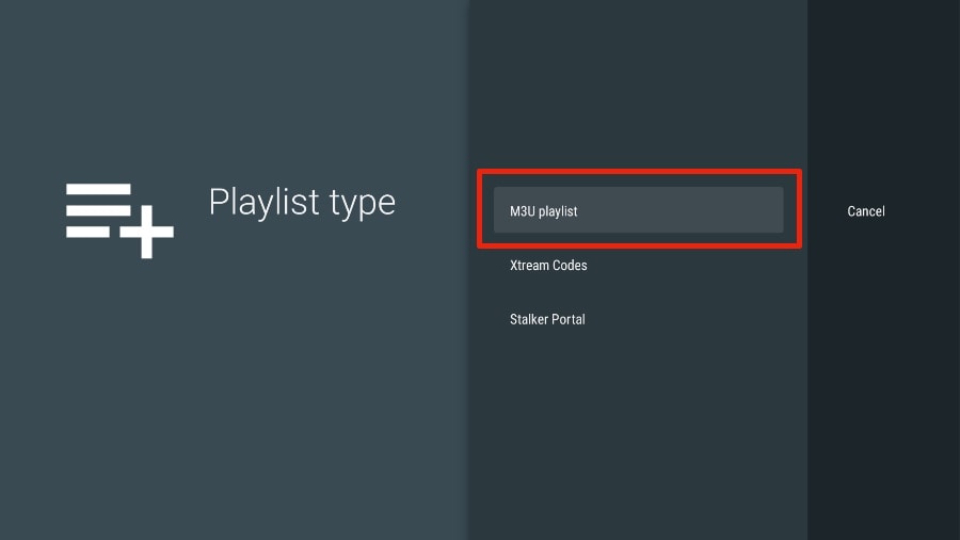
Choose the option that says Add Playlist.
You will see different methods. Select Enter URL or Enter the playlist URL.
A text box will appear on your screen. Carefully type your playlist URL here. You must get every character correct.
After entering the URL, click Next.
You can name your playlist. Use a simple name like My IPTV.
Click Next again. Tivimate will now start loading your channels.
This process can take several minutes. It depends on how many channels you have.
Once finished, you will see your channel categories. You have successfully learned how to add playlist to Tivimate.
How to Add Playlist to Tivimate Using a File
Some users have an m3u file instead of a URL. You can use this method too.
Place the m3u file on a USB drive.
Insert the USB drive into your Android TV or Firestick. You may need an adapter.
In Tivimate, go to Add Playlist.
Choose the option for Select File or Upload File.
Navigate to your USB drive and select the m3u file.
Click OK or Upload.
Tivimate will process the file and add your channels.
Adding an EPG Guide to Tivimate
An EPG makes your TV guide functional. It shows what is on each channel.
While in your playlist settings, look for EPG sources.
Select Add EPG source or Assign EPG.
Choose Enter URL.
Type the EPG URL provided by your IPTV service.
Click OK or Submit.
Tivimate will download the program guide data.
Go back to the main screen. Your guide should now show program information.
Organizing Your Playlist in Tivimate
After you add playlist to Tivimate, you can organize it. This makes finding channels easier.
You can create favorite channel groups. Highlight a channel and press the OK button. Select Add to favorites.
You can hide channels you do not watch. Press the menu button on a channel. Choose Hide channel.
You can change the order of channels. Use the move option in the channel list.
You can assign logos to channels. This makes the list look more professional.
Troubleshooting Common Playlist Problems
Sometimes the playlist does not work. Here are some fixes.
If your channels do not load, check your URL for typing mistakes.
Ensure your IPTV subscription is still active. Contact your provider.
Restart the Tivimate app. Close it completely and open it again.
Check your internet connection. A weak signal can interrupt the download.
Clear the Tivimate cache. Go to your device settings, then applications. Find Tivimate and select Clear Cache.
Update the playlist. In Tivimate settings, find your playlist. Select Update playlist.
Why a Reliable IPTV Service is Important
Your ability to add playlist to Tivimate is only the first step. The quality of your streams depends on your IPTV provider. A good service has minimal buffering. It offers consistent uptime and many HD channels. It provides updated playlist and EPG URLs. A poor service will have broken links and constant downtime. This ruins the viewing experience, even with a perfect Tivimate setup.
You now know how to add playlist to Tivimate. The next step is choosing the best IPTV service. For a reliable and high quality streaming experience, select a trusted provider. Visit our website to find the best IPTV subscription for your Tivimate app. Start enjoying seamless integration and endless entertainment today.
Comments
Join the discussionNo comments yet. Be the first to comment.